
Websites
How to build a booking calendar with ChatGPT: the DOP case
To build a booking calendar with ChatGPT, define your hours, appointment length and capacity. Build it in stages, then check that bookings persist and that only authorised people can open the team dashboard. This guide uses ChatGPT Sites and De Otro Planeta’s consultation calendar, with prompts you can adapt and tests to run before publishing.
Editorial review: .
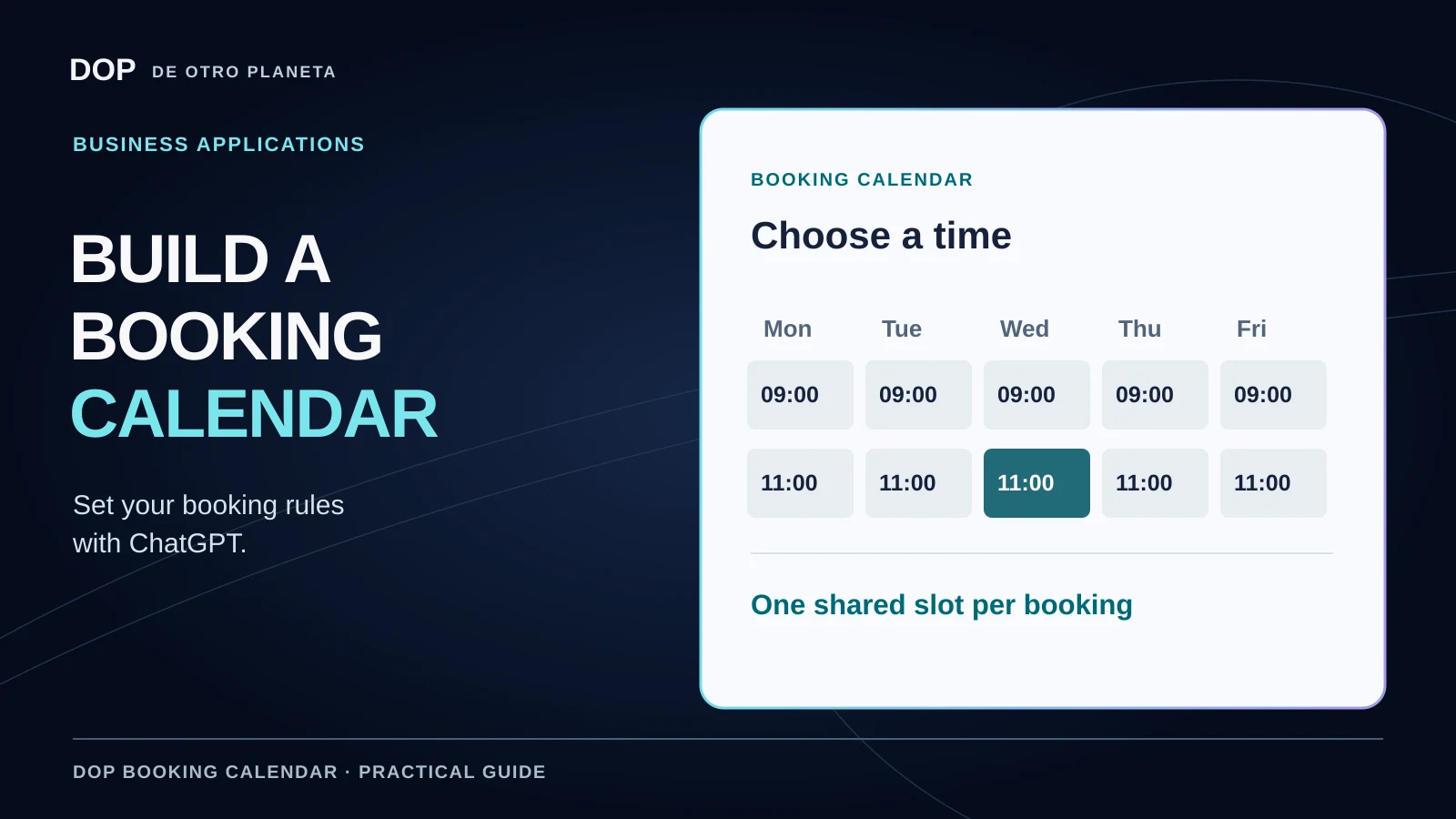
All the tutorial materials are on this page. You’ll find an access check, the full brief, phased build instructions, tests, publication checks and an adaptation worksheet. Copy each block and continue in the same project. Blocks A–D bring together the final instructions from the DOP case.
We reconstructed these instructions from our work rather than transcribing the original conversation. We used Sites, code and tests to build the calendar. Below, we distinguish the instructions from the results we actually verified.
What you’ll build
A web calendar with shared slots, booking confirmations and a private dashboard. Google Calendar, payments and automatic email or WhatsApp reminders are outside the scope of this case. Each would need its own integration.
1. Download ChatGPT and check your access to Sites
Download a version that works on your computer from the official ChatGPT download page and sign in. This guide starts in the desktop app. You can also use Sites on the web, without a particular Mac model or a terminal. If you already have the app, check for updates.
Check the limits and permissions available on your account. A workspace administrator may restrict creation or public publication. Describe the website you want or mention @Sites to start the project. Check the official help before buying a plan on the assumption that every feature is included.
When we prepared the October 7, 2026 edition, Plus was listed at US$20 a month. That is a historical price. Before subscribing, check your final price, taxes, access and account limits. The documentation distinguishes Codex usage during building or editing from runtime and hosting. External services may cost extra.
Try it. Open a conversation, look for Work if available, and paste block A. If Sites is missing in the desktop app, check Sites on the web using the same account.
BLOCK A · CHECK ACCESS I want to build a booking website with ChatGPT Sites. Before building, help me check whether my account and the available tools support it. Distinguish what you can verify from what I need to check myself. Do not assume you can see my plan, my screen or my permissions. Help me find Work and Sites and check the plan shown in my account. If you need a screenshot, ask for one with personal email addresses, billing details and private information removed. If Sites is missing from the app, help me check chatgpt.com/sites in a browser using the same account. Check whether the environment offers persistent server-side storage, authentication and permissions for a private dashboard. If something is unavailable, explain the blocker rather than simulating the feature or inventing access. At this stage, do not build, publish, buy or connect services. Give me a list of confirmed items, outstanding items and the next step. Do not ask for passwords or keys. END BLOCK A
What to look for. A list of what is confirmed, what is outstanding and what to do next. Open the suggested option and verify access in your own account before purchasing a plan.
2. Define what someone can book
DOP offers a free, 30-minute Zoom consultation on setting up two Meta Ads campaigns: one for brand awareness and one driving traffic to WhatsApp. The session covers the market and its opportunities, the ideal audience, campaign structure, guidance for flyers, videos and copy, and targeting decisions made together. It does not include ad spend or guarantee sales.
Visitors choose Camila or Jairo. The business time zone is America/Bogota. Five start times are available Monday through Friday: 09:00, 10:00, 11:00, 19:00 and 20:00. The calendar excludes the configured official Colombian holidays.
The rule that shapes the whole calendar is one shared slot per date and time across both advisers. As soon as someone books with Camila, Jairo cannot be booked for that slot either. We set November 1, 2026 as the opening date. The first eligible appointment was Tuesday, November 3, within a rolling window of 30 calendar dates.
Try it. After confirming access, paste block B into your own practice project. Its button copies the brief and its continuation together. Change the service and rules before accepting your own bookings. A practice copy must not accept appointments on DOP’s behalf.
BLOCK B · BUILD THE CALENDAR I want to use Sites to build a booking website, using De Otro Planeta's example as a learning exercise. I am a beginner. Explain the plan first, ask about essential decisions and wait for approval before implementing. Start with fictional data and save a version for review before publishing. Service: a free 30-minute Zoom consultation to create two Meta Ads campaigns. One is for brand awareness and the other drives traffic to WhatsApp. The session covers market and opportunity analysis, the target audience, campaign structure, guidance on flyers, video and copy, and targeting decisions made together. Do not promise sales or include ad spend. The visitor chooses Camila or Jairo. Both share one slot for each start time. Choosing the other adviser does not create a second place. Appointments run Monday through Friday, excluding official Colombian public holidays. Business time zone: America/Bogota. The only start times are 09:00, 10:00, 11:00, 19:00 and 20:00. Each appointment lasts 30 minutes, with one start per hour. Do not offer starts on the half-hour, at 12:00 or at 21:00. Opening date for this case: November 1, 2026. After applying weekdays and holidays, the first available appointment is Tuesday, November 3. Use a rolling window of 30 calendar dates, counting today's local date. Exclude past times and dates before opening. This is a booking horizon, not a minimum of 30 days' notice. Verify holidays against official sources and document how the calendar will be updated. Build three connected parts: adviser, date and time selection; a private booking confirmation; and a protected team dashboard. The example form asks for name, email, WhatsApp number, company, country, city, website or Instagram, the reason for the consultation, and consent. Before implementing, spell out the required fields and validation rules for our version. Discuss changes explicitly. Block B continued Reviewing the booking summary does not hold the slot. On confirmation, recheck availability and save the booking before displaying success. Use stable identifiers. Checking and creating the booking must prevent two people from reserving the same slot at once, including across Camila and Jairo. A double-click or a retry of the same request must return the same booking. Save bookings on the server so they survive a reload and can be viewed in another browser. Use storage supported in the environment. DOP used a server with D1. If additional permissions, services or costs are involved, explain them and wait for approval. Do not rely on the browser's local storage as the only database. The private confirmation lets visitors view a booking and cancel or reschedule up to one hour before it starts. Make its link hard to guess, treat it as private, and keep it out of public listings. When rescheduling, check the new slot and complete the move and release in one safe operation. If the move fails or the new time is taken, keep the original booking. Retain a history. The dashboard shows today and the next six days, including every booking even when there are more than ten. Records and follow-up notes must survive a reload. Marking someone as a no-show does not automatically cancel the booking. Use real authentication. The owner can see both calendars; each authorised adviser sees only their own bookings. Configure identities through a secure channel. Do not invent accounts, passwords or team members. Validate data and permissions on the server. Visitors must only be able to see their own booking. Team records, internal notes and other visitors' bookings must remain private regardless of which identifier is requested. Hiding interface controls is insufficient. Keep keys and secrets out of public code, prompts and screenshots. Separate testing from production. Configure our own meeting link through a secure channel and show it only after confirmation. Do not copy or publish DOP's real meeting room. Mark this connection as pending until our own link is configured. Do not invent a meeting. Use Demo Person, Demo Company and fictional contact details for tests, without sending messages. Do not add payments, automated emails, automated WhatsApp messages, Google Calendar, Google Sheets or any other platform connection. Collecting contact details does not grant permission to send messages. The initial confirmation is the on-screen booking receipt. Only describe integrations that have been tested. Start with the plan, data, permissions, privacy rules and acceptance criteria. After approval, implement the complete journey and save a version for review. If a review requires deployment, explain this and confirm the audience. Do not make it public without approval. Then run the tests in block C. Do not promise it will work on the first attempt. END BLOCK B
What to check. The rules should agree about shared capacity, holidays and the cutoff for changing a reservation. Settle these questions before requesting a design.
3. Build in phases and make sure bookings persist
Walk through choosing a date, adviser and time, completing the form and receiving the confirmation. Then connect storage, the rules for changes and the team dashboard. A success message on a screen tells you little about what survives after the browser closes.
Ask for persistent server-side storage and a single operation that checks and claims a slot. A double-click should return the same appointment. DOP used a Worker and D1. In your own project, confirm what storage is available and how you will test it.
Continue in the same project with the agreed requirements. Phase 1: build date, time zone, adviser and start-time selection, the form and consent. Use a local demo with fictional data. Identify what still needs to be connected. Phase 2: connect persistent server storage and atomic operations. Each date and time has one shared slot across both advisers. Repeating the same request must return the same booking. Phase 3: implement confirmation and booking management through a private link. Protect its keys and enforce the one-hour rule on the server. If a change fails or the new slot is taken, retain the original appointment. Phase 4: add a dashboard with real sign-in and server-side permission checks. The owner sees everything; each authorised adviser sees their own bookings. Save follow-up notes. Do not grant access without my confirmation. Show a preview at each stage, explain what works and run relevant tests. Separate local tests from production checks. Do not book test appointments in production, change permissions or publish without instruction. If something fails, preserve the previous state and explain the error before continuing.
After each phase, look for a usable version, a summary of what works and outstanding tasks. Check that bookings, consent and follow-up notes are saved and that the server checks dashboard permissions. A screenshot alone cannot verify privacy or persistence.
4. Test booking conflicts, changes and permissions
Use fictional data in an isolated test environment. Two visitors could select the same time before either one confirms. The server should accept a single booking. If rescheduling fails, the original appointment should remain available to its owner.
Try it. Paste block C and record each result as passed, failed or unverified. Ask for help running any checks that cannot be automated.
BLOCK C · TESTS Test the calendar with fictional data and record each result as passed, failed or unverified. Identify which checks ran locally and which ran on the deployed site. Do not publish yet. Check opening date, holidays, weekdays, five start times, duration, the 30-date window and time zones. Only offer times within those rules. When relevant, test a visitor time zone that observes daylight saving time. Test two visitors competing for the same time with different advisers. Only one booking should be confirmed. Repeat the same request and verify that it produces a single booking. Check that reviewing a summary does not occupy the slot and that bookings and statuses survive restarting the environment or opening another browser. Test rescheduling to an occupied time and simulate a failed move in the test environment: the original appointment must survive. Test simultaneous changes, cancellation exactly one hour before the appointment and rejection with less than one hour remaining. Check history, follow-up and a dashboard containing more than ten appointments. Verify that unauthorised visitors cannot view team records or internal notes. Check that each role has access only to its permitted data. Review on desktop and mobile. Confirm that no automated emails or WhatsApp messages are sent. For each failure, explain the steps, cause and a small fix. Repeat the affected checks without deleting anyone else's data. Mark untested items as unverified. END BLOCK C
We recorded 15 automated tests in a local Miniflare D1 environment. Thirty concurrent requests across both advisers produced one shared booking. Twenty duplicate requests for the same appointment returned a single booking. Failed changes preserved the original appointment, and saved data survived reopening the environment.
We also tested the cancellation cutoff. A cancellation exactly one hour before the appointment succeeded. With 59 minutes and 59 seconds left, it was rejected. Those were local results. In private production, we checked the owner’s actual access, availability, the dashboard and desktop and mobile views. The agent created no test bookings there.
The original form and confirmation screenshots used Demo Person, Demo Company and fictional contact details in a local test. Run the checks on your own version and keep its results.
5. Separate public booking access from the private dashboard
The live DOP consultation calendar (in Spanish) is open to visitors without a login. You can also visit its original Sites address. Team access requires authentication and the dashboard remains private.
The first version was published only for the owner authorised through ChatGPT. We later enabled public access to the Site. On October 7, 2026, signed-out checks confirmed that visitors could open the calendar while the dashboard required sign-in. That audience change was separate from the local booking tests. We created no production test appointments.
Decide whether the form should accept external visitors and protect the dashboard separately. As the Sites documentation explains, the site audience and sign-in are separate settings. Public publishing may depend on your workspace administrator.
BLOCK D · REVIEW PUBLICATION Help me review publication without changing access yet. Summarise the destination, booking-page audience, dashboard protection, outstanding tests, limits, costs and handling of data. Check that secrets are protected and that fictional records cannot be mistaken for real customers. Ask for my explicit approval of destination and audience. Once authorised and published, check the booking page from a signed-out session if it is meant for visitors, and test the dashboard with an authorised account. The dashboard must remain private behind a public booking URL. If an alternative address or redirect exists, verify it points to the same app and uses the same booking database. END BLOCK D
Once publication is authorised and complete, open the URL as a new visitor to check the intended access. The owner should test the dashboard with their real account. Keep a recoverable version and document which features were tested, which depend on permissions and which remain outstanding.
This tutorial does not activate payments, Google Calendar, automatic emails or messaging. Add them as separate phases with their own permissions, costs and tests if you need them.
6. Adapt the brief to your business
Fill in the worksheet with your service, team, capacity, hours, form, privacy rules, changes, roles, meeting arrangements and support. Ask ChatGPT to return the full block B with your details. Resolve outstanding fields and retain the testing and pre-publication review.
WORKSHEET · ADAPT THE BRIEF I want to adapt block B to my business. Use this worksheet and ask about any essential missing details before implementing. Replace these details for your business: Service: [name, scope, price and duration] Team and capacity: [advisers and shared or independent capacity] Availability: [time zone, days, start times, opening date, holidays and booking window] Form and privacy: [necessary data, required fields, notice and retention] Changes and access: [cancellation cutoff, roles and authorised identities] Meeting and support: [your own meeting link through a secure channel and the person responsible for support] Return a complete block B based on my worksheet, keeping my details separate from DOP's. Resolve missing fields, retain the tests and complete a review before publishing. Do not include medical information, card details or secrets. Review the permitted uses of Sites before adding integrations. END WORKSHEET
What to check. Look for a complete, internally consistent brief for your business. Keep secrets out of the prompt and configure your meeting link through a secure channel. Avoid medical information, card details and unnecessary data. Review the permitted uses of Sites before adding integrations.
Frequently asked questions
Could this be an alternative to Calendly?
A custom calendar may suit a specific rule like DOP’s shared capacity. Compare what your business needs for bookings, changes, integrations, reminders, support and maintenance. This case does not demonstrate parity with every Calendly feature.
Do I need to know how to code?
You can describe your business in everyday language. You still need to review decisions and results. Ask for clear explanations, previews and evidence from the tests. If permissions or persistence are difficult to verify, get a technical review before collecting customer data.
Where are the prompts?
Blocks A–D, the phased build plan and the adaptation worksheet each have a copy button on this page. Start with the access check, use the full brief, run the tests and review publication. For a different business, complete the worksheet and request an adapted block B.
How long does it take? Will it work on the first attempt?
Timing depends on scope, tool access and the fixes you need. DOP’s case involved multiple work phases, testing and recovery. It cannot predict how long your build will take or whether your first attempt will succeed.
Sources and scope
October 7, 2026 edition. This guide draws on requirements and recorded evidence from DOP’s consultation calendar. Local tests and private production checks are described separately. The prompts reconstruct the process for teaching purposes.
Confirm the current building, runtime, hosting and storage conditions for your account. Long-term free access and bundled external services are not guaranteed. DOP’s official contact details appear in the footer.
Does your website need a booking process?
We can review the booking journey, rules and features your business needs. We build websites and landing pages to order. Integrations, external costs and deliverables are defined in the proposal.
Explore websites and landing pagesTalk to us about your project