
Digital advertising · Step-by-step tutorial
How to publish your first Facebook and Instagram ad
To advertise on Facebook and Instagram, organize your accounts and permissions, choose an objective, set the audience and budget, and review the ad before submitting it. This guide walks through an awareness campaign on video and in writing. It shows how the settings work so you can decide which ones fit your own business.
The eight-minute video walkthrough
The Spanish-language video by @SOMOSDEOTROPLANETA was published on September 30, 2026. Pause at any point or use the links in the written steps to open individual chapters. You can also watch the entire tutorial on YouTube.
We set up an Awareness campaign and submit an ad for review. Approval, delivery and sales are subsequent outcomes.
The video includes screenshots of the setup and demonstrations with fictional data identified on screen. The guide distinguishes the decisions we made in this example from decisions you should adapt to your business. Menu names can vary by country, account and software version.
- 01Gather account access and permissions
- 02Set the objective, budget and audience
- 03Review the ad and check its delivery status
Before you open Ads Manager, check that the business can respond
This video demonstrates an Awareness campaign. Before repeating the steps, write down what you need to achieve. Introducing an offer, receiving inquiries and recording a purchase are different goals. Meta recommends choosing the objective that fits your business goal.
Prepare an offer you can explain without a call. Specify whom it serves, what's included, where it is available, the terms and the next step. The video, copy and destination page or chat should describe the same offer. Correct campaign settings cannot fix a promise the business cannot deliver.
Decide who will answer inquiries, during which hours and where follow-up will be recorded. Test the destination on a phone while signed out of your administrator accounts, using fictional information. Set a total budget and review date you can sustain. The tutorial's ages, cities and spending amounts illustrate our case.
- Clear offer, service area and terms.
- A campaign objective that fits the result you want to measure.
- Permission to use the images, music and testimonials in advertising.
- A correct, readable destination tested on a phone.
- A person responsible for replies, service hours and a next step.
- A total budget, a test period and a rule for reviewing results.
- A record that separates messages, sales opportunities and confirmed sales.
1. Set up access before creating a campaign
Gather the business's Facebook Page, professional Instagram account, access to manage them, a business email address and an accepted payment method. Turn on two-factor authentication. That way you can check you have the right account and permissions before reaching the final screen.
Adding the business's assets to its portfolio requires appropriate control. If another person manages the Page, resolve access with them first. Give each person the permissions they need instead of sharing a password.
WhatsApp Business is optional for this guide. Connect it if you want to receive conversations. You can follow these steps without buying Meta Verified. A verification badge and permission to advertise are separate matters.
- Identify the business's Facebook Page.
- Check access to the correct professional Instagram account.
- Confirm you can access the business email address.
- Review permissions and enable two-factor authentication.
- Have your own or licensed video, ad copy and destination ready.
2. Open Business Suite and create your portfolio
Watch 00:40 on YouTube ↗ · Watch 01:04 on YouTube ↗
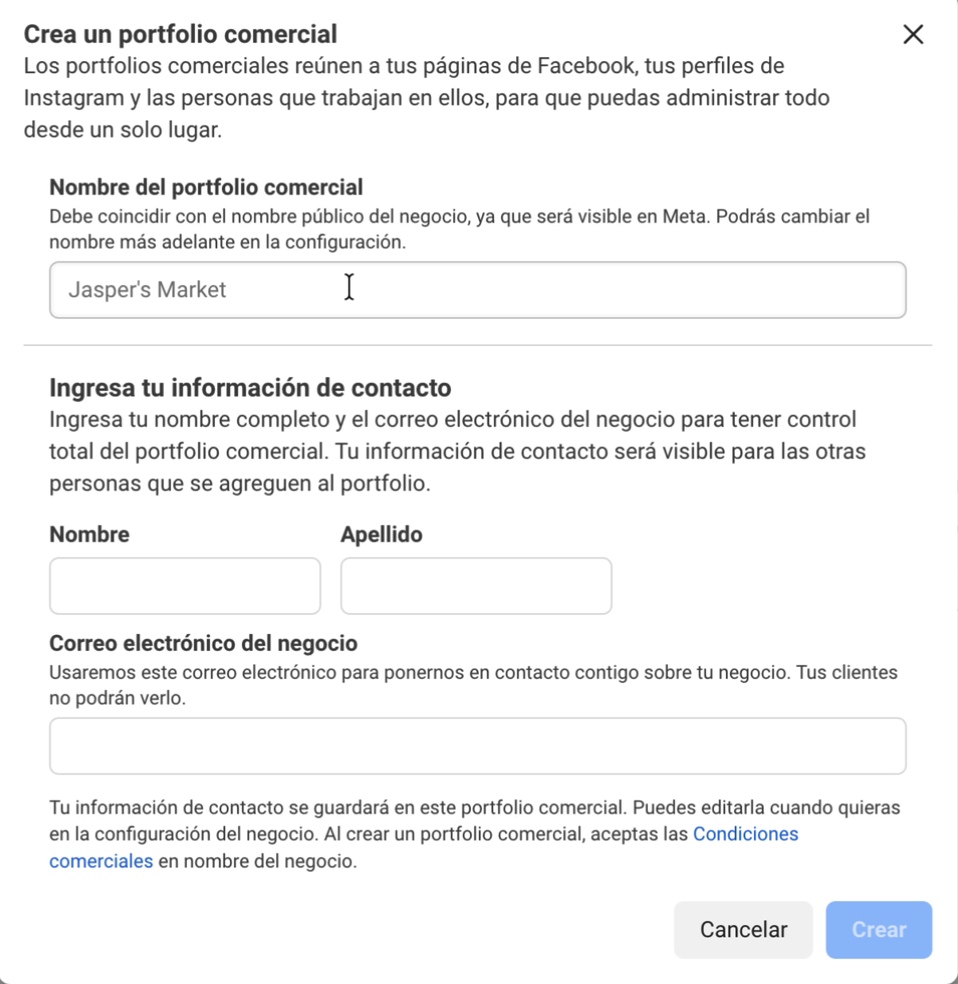
Open Meta Business Suite on a computer and sign in with the profile that manages your Page. In the selector at the upper left, choose Create business portfolio. If you're already working inside a portfolio, check whether it is the right one before making another.
Enter the public business name, your first and last names and the business email address. Review the details, click Create and confirm the email from Meta. Give the portfolio a name that helps you identify which business you are managing.
A portfolio organizes assets and access. The Page represents the business on Facebook, Instagram provides the business's identity on that platform, and the ad account manages campaigns and billing. After creating the portfolio you still need to connect the assets and set up the campaign.
- 01Portfolio: assets and people
- 02Page and Instagram: business identity
- 03Ad account: campaigns and billing
3. Add Facebook and Instagram and check the connection
Watch 01:23 on YouTube ↗ · Watch 01:47 on YouTube ↗
Inside the portfolio, open Settings → Accounts → Pages → Add. Choose to add an existing Facebook Page. Search its name or paste its link, click Next and review permissions and terms before confirming. Check the photo and name to avoid selecting another business with a similar name.
Next open Instagram accounts → Add. Sign in to the professional account you plan to use and complete the confirmation. Seeing two icons inside the portfolio is only the first check.
Also verify that Instagram connects to the correct Facebook Page. The video checks from Instagram under Edit profile → Page → Connect or create and selects the Page. Adding both accounts to a portfolio and connecting them to one another are separate steps.
Our check: identify the business's Page and Instagram account and verify that the connection points to that same Page.
4. Create the ad account with the correct currency
Go to Settings → Accounts → Ad accounts. Select Add and choose to create an ad account. Enter a recognizable name and select the appropriate time zone and currency. Review both before continuing, even if you followed someone else's settings in a tutorial.
Choose My business if the account is for your own company. Check the portfolio and terms before confirming. In the workflow we documented, the account becomes permanently associated with that portfolio. Take a moment to verify the owner.
The currency determines how amounts appear. The time zone affects how you read the account's schedule. Our example uses Colombian pesos. Check the selected account again when opening Ads Manager, particularly if you manage several.
- Use a name that identifies the business.
- Check which portfolio owns the account.
- Verify currency and time zone before confirming.
5. Configure payment and complete requested verification
Watch 02:45 on YouTube ↗ · Watch 03:09 on YouTube ↗ · Watch 03:21 on YouTube ↗
Open Billing & payments, select the correct ad account and go to Payment methods or Payment settings, depending on your screen. Choose Add payment method and follow the prompts. Available options depend on your country and account.
If Meta asks for confirmation, open Account overview and check the Page, email and payment method. Complete the checks Meta requests for your account. Business verification requirements vary. Protect card details and codes, including when sharing screenshots to ask for help.
To connect WhatsApp Business from your phone, the video uses Tools → Facebook and Instagram → Facebook. Sign in, select the Page and complete the connection. This optional step uses the WhatsApp Business app. The Awareness campaign example doesn't involve an API setup or an external provider.
6. Choose Awareness and define what you want it to do
Open Ads Manager, check the account and select Create → Auction → Awareness → Continue. This is the combination used in the video.
Think of it as handing out flyers on people's phones to introduce a business in a specific area. At the ad set level we ask Meta to maximize reach. This choice prioritizes exposure. It does not optimize for purchases or promise inexpensive conversations.
Write down what you need to achieve before continuing. For sales, leads or conversations, choose the appropriate objective and settings. Switching objectives requires revisiting the audience journey as well as the campaign settings.
My business is [business]. I want people in [area] to discover [offer or brand]. I will prepare an Awareness campaign and check reach, frequency and CPM. I can afford [amount] and will review results on [date]. I will use separate evidence to assess sales.
A worksheet for defining your objective before setup. Filling it in will not activate a campaign or calculate results.
7. Understand the campaign, ad set and ad
Each level answers a different question. Choose the objective at campaign level. Organize audience, schedule, placements and delivery settings in the ad set. Choose the identity and content people will see at ad level. To change the video, open the ad. To review the cities, open the ad set.
Use names you will recognize later. A campaign name could identify the brand and purpose, an ad set name could describe the audience, and an ad name could identify the video. This makes an account easier to manage.
Review special ad categories when your activity requires them. We used a campaign-level budget in the DOP draft so ad sets could share a single amount. Ad set budgets are also available. Check which level you are editing before entering an amount.
- 01Campaign: why you advertise
- 02Ad set: who, when and where
- 03Ad: the identity and content you show
| Level | What we review in this case |
|---|---|
| Campaign | Awareness and a shared budget. |
| Ad set | Maximize reach, schedule, cities, ages and placements. |
| Ad | Page, Instagram account, video, text, button and destination. |
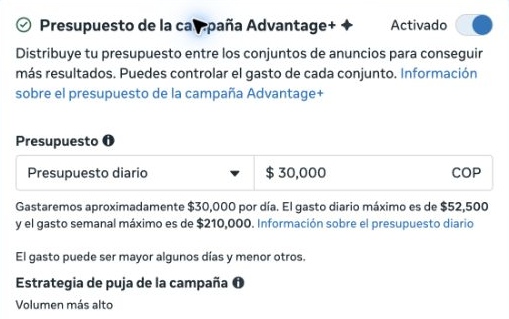
8. Set the budget and schedule: COP 30,000 per day across the campaign
In the video, COP 30,000 is the total daily campaign budget, shared between its ad sets. Facebook and Instagram don't each receive another COP 30,000. The amount is specific to this example.
The daily budget operates as an average. The account screen warns that spending can vary by day. Read the limits and terms shown in your account before assuming you have set an identical cap for every date.
At ad set level, review the performance goal. We use Maximize reach. Configure a start date and, for a fixed-duration test, an end date. Before publishing, consider spending over the whole period as well as the daily amount.
One campaign budget is distributed across ad sets. Platforms, ad sets and placements can receive different shares.
9. Check each control for cities, ages and placements
Under Locations we searched for Bogotá and Medellín. For each city, we opened its options and chose Current city only, excluding the surrounding radius in the example. We selected ages 22–40. Your own cities and ages should reflect the business you serve.
Meta estimates location. It cannot guarantee someone's exact residence or position. Read the interface description of whom the ad might reach, then adjust the area to match the business's capacity.
For Advantage+, distinguish mandatory controls from suggestions and check whether expansion is enabled. Fields can have different effects. The example then selects Advantage+ placements, allowing Meta to distribute delivery across compatible spaces. Spend and the appearance of the creative can vary across placements.
| In the video | What to check in your account |
|---|---|
| Bogotá and Medellín; Current city only | Your service area and the geographic control's description. |
| Ages 22–40 | Your relevant audience and which settings are limits or suggestions. |
| Advantage+ placements | Creative compatibility and the preview for each placement. |
10. Select an existing post and check its identity
At ad level, check the Facebook Page and Instagram account under Identity. Select Use existing post, open the selector, choose the video and click Continue. Review the whole post beyond its thumbnail.
The tutorial shows how to choose a Facebook post and review its Instagram appearance, or select the original Instagram reel. You still need to review the destination, button and presentation when reusing a post.
Would someone seeing only this ad understand what you offer and where the button will take them? Check for clipped text, awkward framing and legibility in each available placement.
11. Get permission to advertise a collaborative reel
An organic collaboration does not automatically grant permission to run a partnership ad. In the video, the creator opens a request in Instagram messages and selects Allow. Depending on the workflow, the creator may also share a partnership ad code.
Check identities, permissions and content eligibility. If you're using your own video without a collaborator, this special permission isn't part of your workflow. Enable collaboration options only when they apply.
Meta treats paid use and creator permissions as a specific part of working with creators. See the Meta Blueprint course on partnership ads.
- 01Select the content and identities
- 02Obtain the appropriate advertising permission
- 03Review the ad with the correct authorization
12. Upload a video without publishing it to the profile first
For a video that has no existing organic post, change the setup to Create ad. Open Add media → Add video → Upload in the creative section. Select a file you own or are authorized to advertise.
Prepare a vertical version for Stories and Reels. Review square and landscape adaptations where the account allows placement-specific settings. Add copy and check identity, destination and previews. This option lets you use the video without publishing it to the profile first.
The tutorial shows where to find the option. We didn't upload another video or use this workflow to create a third ad in the example.
13. Review the ad before submitting it
Open Advanced preview and step through the placements. Check the image, text, crop and button. Test the destination too. Sending a viewer to the wrong account wastes the opportunity, even with a good video. Review this as carefully as the budget.
In the example we accept an enhancement involving WhatsApp and keep control of the audience. Review what each recommendation changes before accepting it. An opportunity score alone is not a reason to change a business decision and does not guarantee sales. See Meta Blueprint's guide to these recommendations.
When the settings match the plan, click Publish and check the Delivery column. Publishing submits the ad for review. The video shows the Facebook ad set marked In review, so we cannot conclude that every ad is already active.
- Correct ad account, Facebook Page and Instagram account.
- Objective and performance goal reflect the intended outcome.
- Budget set at the intended level and schedule checked.
- Cities, ages, audience controls and placements checked.
- Permission for the creative and collaborator where applicable.
- Copy, video, button and destination checked in previews.
- Delivery status checked after publishing.
14. Measure the outcome you chose
For this Awareness campaign, we review reach, frequency and cost per thousand impressions (CPM). Reach estimates how many people saw the ad. Frequency is the average number of times each person reached saw it. CPM is the cost of displaying it 1,000 times. Use matching reporting periods for comparisons.
A campaign can introduce the business without establishing sales on its own. Record messages, inquiries and confirmed sales separately. Views do not count customers. A sale that occurred while an ad was active needs additional evidence to be attributed to that ad.
Save an initial report with its date, budget, time period, ad and objective-specific metrics. Record what you change later. Those notes make it easier to discuss results and decide what to do next.
| Metric or status | Question it helps answer |
|---|---|
| Delivery | Is the ad in review, active or showing an issue I need to address? |
| Reach | How many people did it reach during the selected period? |
| Frequency | On average, how many times did each person reached see the ad? |
| CPM | How much did 1,000 impressions cost during that period? |
| Business outcome | Which inquiries or sales can I confirm separately? |
Questions to resolve before your first ad
To connect campaign metrics with business results, read how to measure ad spend, opportunities, sales and profit. If inquiries already arrive but stall, start with why ads generate messages but no sales.
Do I have to set up WhatsApp? You can follow this Awareness example without it. Connect it if it fits your business and test the destination if you add a WhatsApp button.
Can I use the exact audience and budget from the video? The example shows how the settings work. Choose values that suit your own offer, service area and spending capacity.
Why can't I see the same button? Countries, accounts, permissions and updates can change the interface. First check that you're at the right level (campaign, ad set or ad) within the right account.
What if I can't advertise a collaborative reel? Review paid-use authorization and content eligibility. Accepting an organic collaboration invite does not automatically grant paid-use rights.
When have I completed the walkthrough? Once you have organized the assets, made the configuration choices and checked the delivery status after submission. Monitoring delivery and results comes next.
If you get stuck, leave the step number in the video's comments or send a message to @somos.deotroplaneta. Describe the screen and message without sharing passwords, codes, private IDs or payment details.
We prepared this edition from DOP's original production script, video chapters and description, production screenshots and the September 30, 2026 source dossier. It is a written guide rather than a downloaded YouTube transcript. Some Meta help pages require sign-in. Public Blueprint courses were available at review. On October 18, 2026, we expanded the business preparation and measurement resources in the article. Those additions describe editorial guidance rather than extra steps performed in the original video. Adapt the example to your business. Approval, delivery and sales are separate outcomes after submission.
Sources and references
The video and original production references are listed alongside Meta Blueprint courses. Some Meta help pages require sign-in.
- DOP · full video and chapters on YouTube, September 30, 2026
- Meta · create a business portfolio
- Meta · add a Facebook Page
- Meta · add an Instagram account
- Meta · create an ad account
- Meta · payment methods
- Meta · campaign objectives
- Meta · campaign, ad set and ad structure
- Meta · daily budget
- Meta · use an existing post
- Meta · ad review
- Meta Blueprint · partnership ads content and permissions
- Meta Blueprint · opportunity score and recommendations
Would you like to learn or have us manage the campaign?
In training, your team does the work with guidance. Our campaign service includes setup and one month of optimization for the agreed objective. Ad spend and creative production are quoted or paid separately.
Explore Meta ads trainingExplore our Meta campaign serviceTell us about your project